

Getting Started
/Import a NAV Portfolio
Import a NAV Portfolio
Skip ticker-by-ticker setup. If you already have a portfolio's NAV history as a CSV, upload it and run the full analysis in one step.
A NAV (Net Asset Value) portfolio uses your own pre-computed history of portfolio values over time, rather than rebuilding returns from individual positions. This is the right choice when you have:
- A backtest export from another tool
- A monthly or daily statement from your broker, fund administrator, or PMS
- A strategy you track in a spreadsheet and want to analyze in PortfoliosLab without re-modeling every trade
File Format
The importer accepts a CSV file with one row per date. Columns:
Date (required)
Dates must be in `YYYY-MM-DD` format. The column header `Date` is matched case-insensitively.
Portfolio (required)
The total NAV of the portfolio on that date. The column header `Portfolio` or `NAV` is accepted (case-insensitively). Absolute values are fine — only relative changes between rows matter.
Additional position columns (optional)
Any number of extra columns named after individual holdings or asset classes (for example `Stocks`, `Bonds`, `VTI`, `BND`). These are imported as standalone NAV series and become available in attribution and correlation views.
A minimal valid file looks like this:
Date,Portfolio,Asset Class 1,Asset Class 2
1971-02-05,100.00,100.00,100.00
1971-02-08,100.27,100.42,100.05
1971-02-09,100.64,100.95,100.18
1971-02-10,101.24,101.71,100.43
A live CSV generated from a real 60/40 stocks/bonds portfolio used elsewhere on PortfoliosLab. It is always up to date and is the easiest way to confirm your environment accepts the format before you prepare your own file.
Download example NAV CSV →
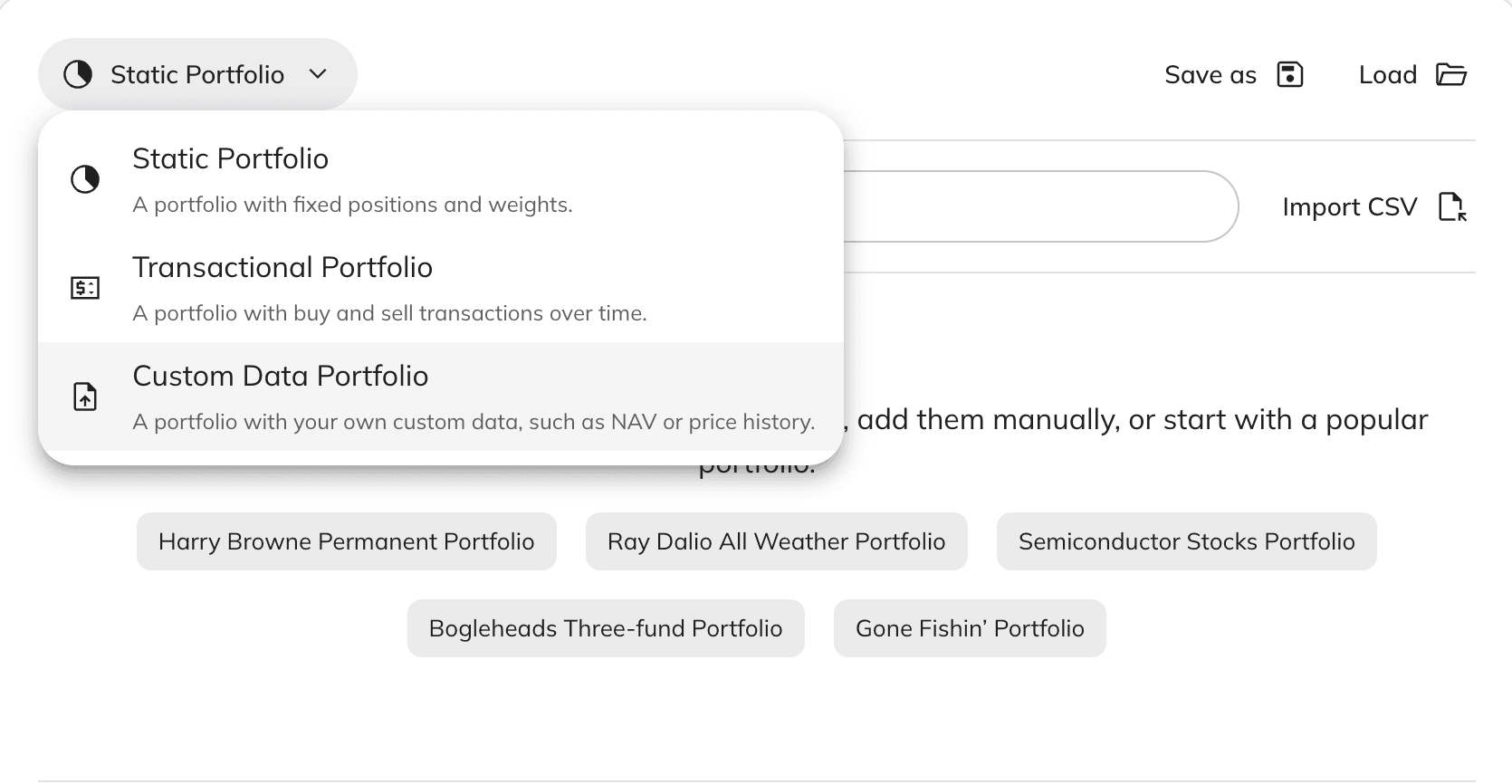
Step 1: Open the Portfolio Creator
Go to Create Portfolio and choose Custom Data as the portfolio type.
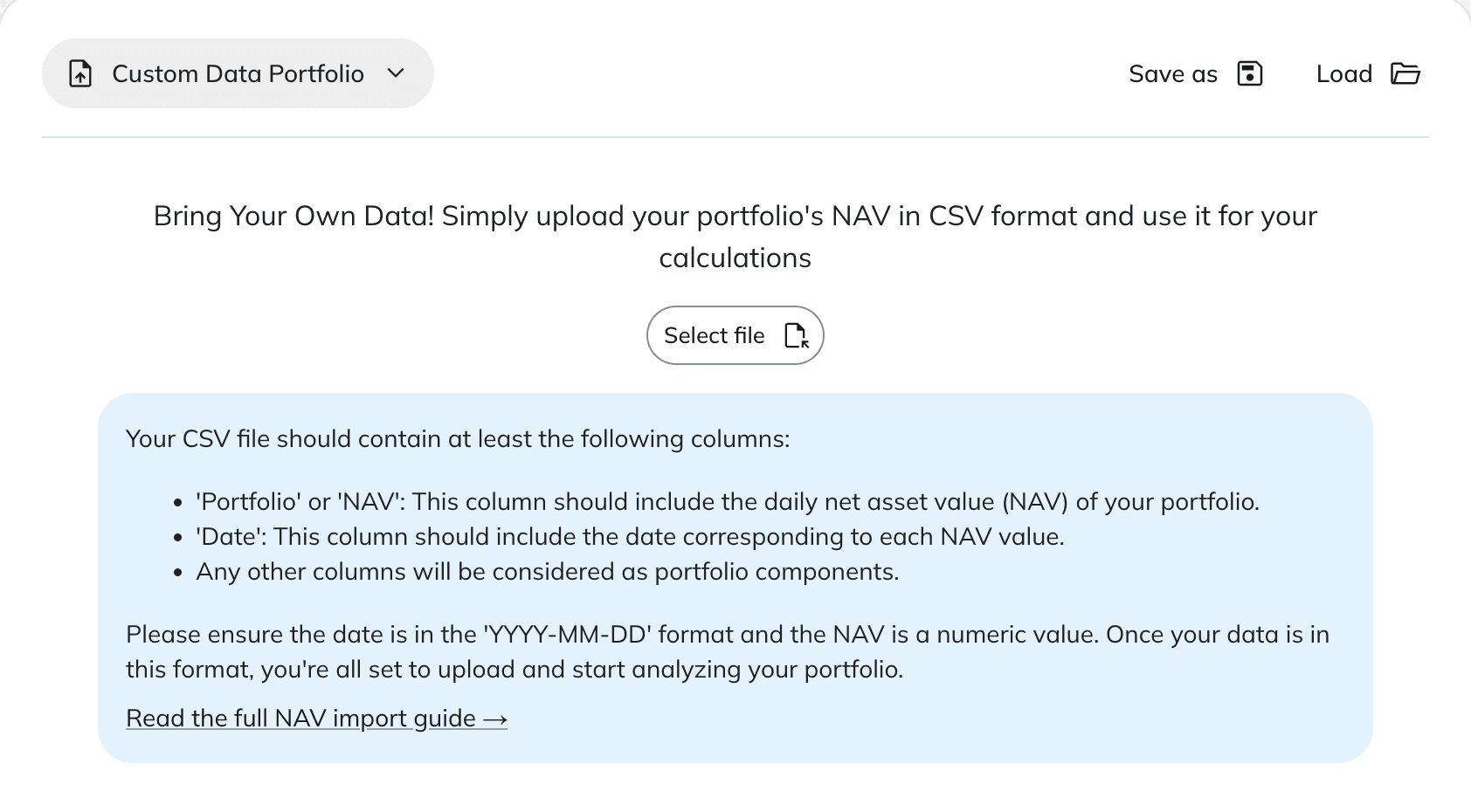
Step 2: Upload Your CSV
Click Select file and pick your CSV. The file is parsed entirely in your browser — nothing is sent to our servers until you save the portfolio.
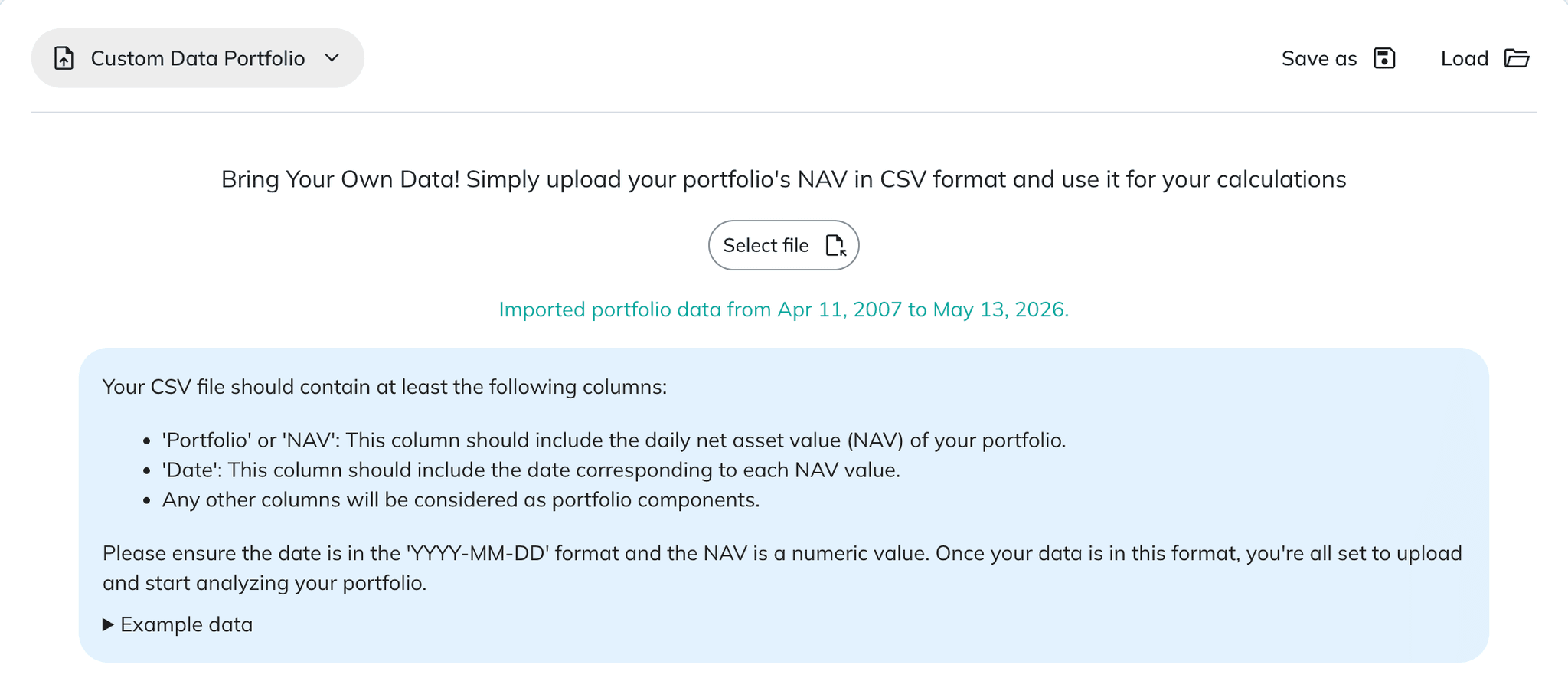
When the file is accepted, the panel shows the imported date range in green.
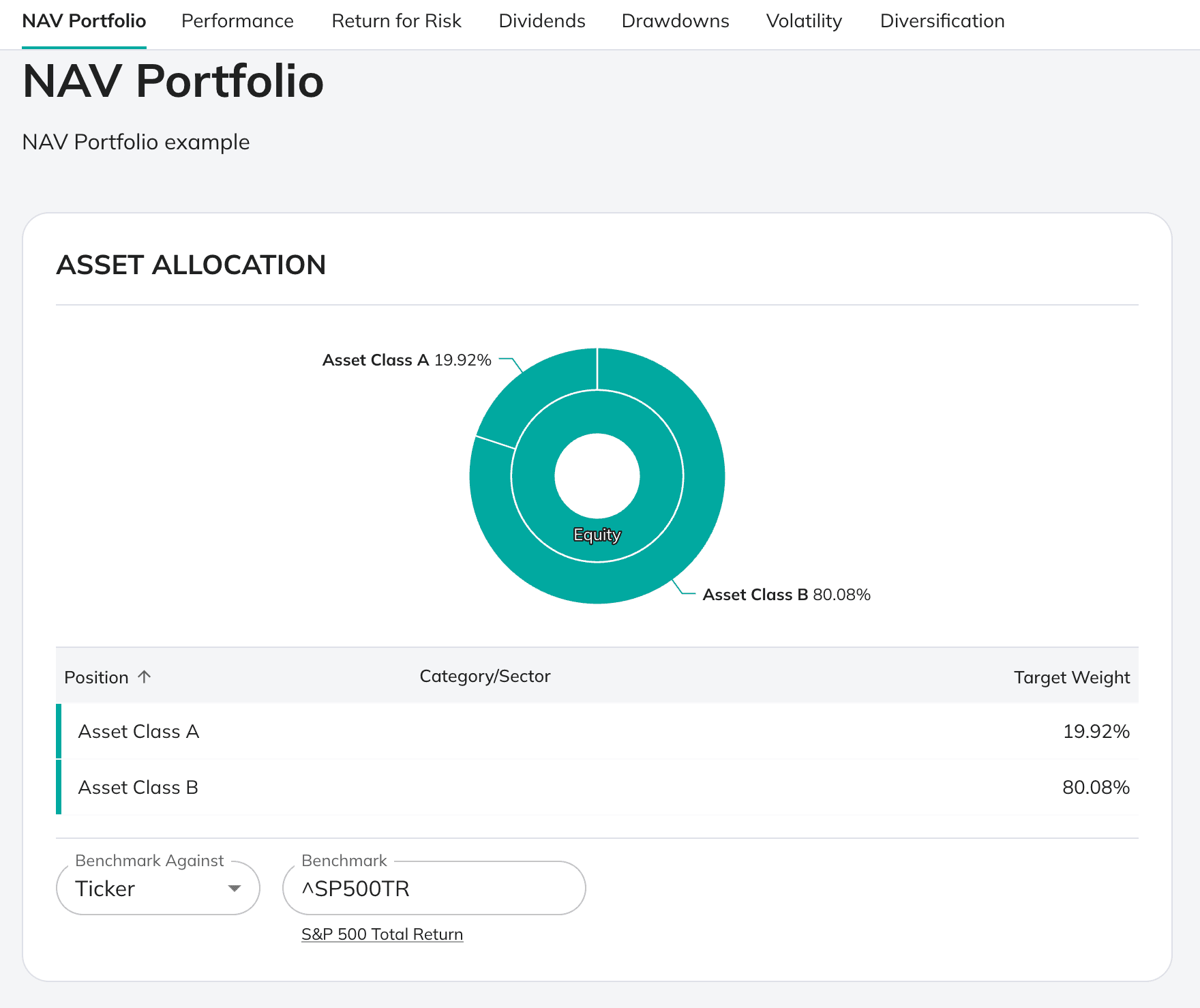
Step 3: Save and Analyze
Set the portfolio name, reporting currency, description, then save. The full Portfolio Analysis view becomes available — returns, drawdowns, rolling Sharpe/Sortino, and every other metric you normally get from a static portfolio.
Data Conventions
Dates: YYYY-MM-DD
Use ISO 8601 dates like `2024-03-15`. Other formats (`03/15/2024`, `15-Mar-24`, Excel serial numbers) are rejected. Most spreadsheet tools have a one-click "Format → Date → 2001-09-26" option.
Frequency: daily or monthly
Both daily (one row per trading day) and monthly (one row per month, typically month-end) NAV series are supported. The frequency is inferred from the spacing of your dates — you do not need to declare it. Mixing frequencies in a single file is not recommended.
Decimal separator: dot
Use `100.25`, not `100,25` and not `1,250.75`. Thousands separators are not supported, and a comma inside a value will be treated as a column separator unless the field is quoted. Strip currency symbols (`$`, `€`), parentheses for negatives, and percent signs before exporting.
Encoding and line endings
UTF-8 is the safest choice. Both `\n` and `\r\n` line endings work. The first row is always treated as the header — don't include extra title rows above it.
Sorting and gaps
Rows can be in any order — they are sorted by date during analysis. Gaps in the time series are fine; we only compute period-over-period change between rows you provide. Duplicate dates should be avoided.
NAV values
Any positive numeric scale works (1.000, 100, 1000, 1234.5678). Only the ratio between consecutive rows matters, so you do not need to normalize to 100 yourself.
Limits
Maximum columns: 500 on paid plans
You can include up to 500 component columns alongside the required `Portfolio` column. NAV import is unavailable on the Free and Plus plans — upgrade to Pro to enable the importer.
No maximum row count
There is no cap on the length of the time series. Daily history going back to the 1970s is fine, as is intraday-derived end-of-day data.
Upload payload up to 5 MB
The CSV itself is parsed in your browser, so the file size on disk does not matter. What matters is the size of the parsed data we save with the portfolio — that payload is capped at 5 MB. For a portfolio with a handful of columns this comfortably allows multiple decades of daily history.
Other Caveats
Column headers must be unique
Duplicate column names overwrite each other during parsing. Rename them — for example use `Stocks_US` and `Stocks_Intl` instead of two `Stocks` columns.
Empty cells become undefined
A blank value in the Portfolio column drops that row from the analysis. Fill forward or remove the row before uploading.
Component columns are standalone series
Component columns (anything besides `Date` and `Portfolio`) are not used to recompute the portfolio total — the `Portfolio` column is treated as authoritative. Component columns appear separately in attribution and correlation views.
Imported portfolios are private by default
NAV portfolios you create from a CSV stay in your account. They are not published to the public portfolio gallery, and the underlying data is never shown to other users.
Common Errors
Portfolio column not found
The first row of the CSV must include a column named `Portfolio` or `NAV`. Rename or add the column and re-upload.
Date column not found
A column named `Date` is required.
Invalid date format
Dates must be `YYYY-MM-DD`. Convert formats like `MM/DD/YYYY` before uploading — most spreadsheet tools have a one-click date format option.
Pro subscription required
NAV import is a Pro feature. If the Select file button shows a lock icon, upgrade your plan to enable uploads.