

Screeners
/Screener Guide
Screener Guide
Use the Stock, ETF, and Mutual Fund Screeners to quickly narrow thousands of symbols down to a focused shortlist that matches your criteria.
Instead of reviewing hundreds of symbols manually, you set filters and let the screener return only the symbols that meet your criteria. You can save your filter combinations, export results, and share screeners with others.
PortfoliosLab includes three screeners:
- Stock Screener — covers individual equities
- ETF Screener — covers exchange-traded funds
- Mutual Fund Screener — covers mutual funds
All three work the same way. This guide uses the Stock Screener as the primary example.
Opening a Screener
Navigate to Screener in the top menu and choose Stocks, ETFs, or Mutual Funds. When the screener opens, you see the full symbol universe for that asset class displayed in a table. No filters are active yet, so all available symbols are shown.
The Results Table
The results table is the main area of the screener. Each row is one symbol. Columns show financial metrics and descriptive fields.
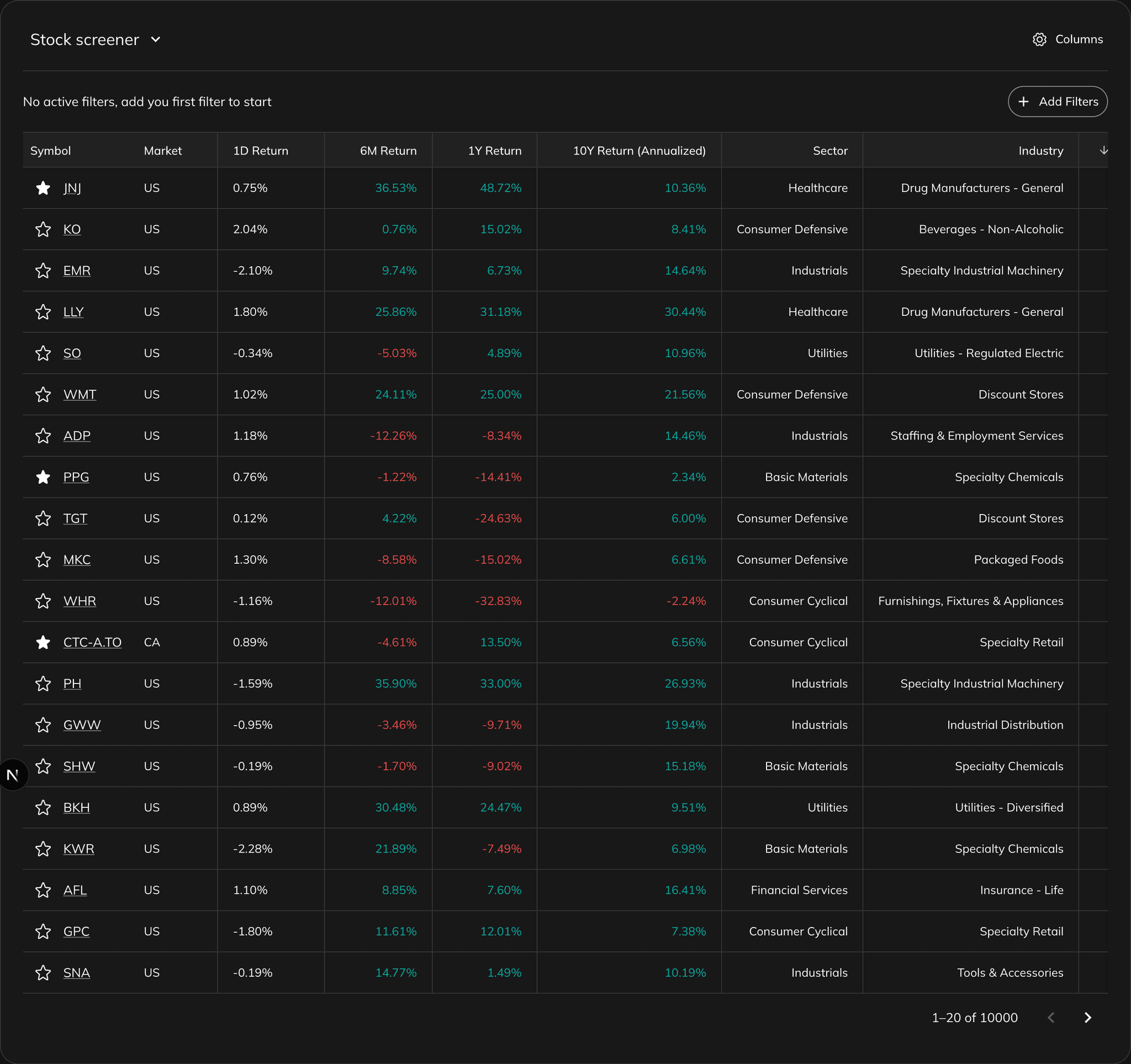
Default Columns
Stock Screener shows these columns by default:
Ticker & Name
Symbol ticker and full company name.
Sector / Industry
The market sector and specific industry the company operates in.
Return YTD
Total return from the beginning of the current calendar year.
Return 10Y
Annualized return over the past 10 years.
Dividend Yield
Annual dividend payments as a percentage of the current price.
Risk / Return Rank
Percentile rank from 0 to 100 that combines five risk-adjusted metric ranks within the peer group. See Risk / Return Rank.
Max Drawdown
The largest peak-to-trough decline in the symbol's history.
Sharpe / Sortino / Omega / Martin / Calmar / Ulcer Index
Risk-adjusted return metrics that measure how efficiently a symbol generates returns relative to the risk it takes.
ETF Screener replaces Sector and Industry with:
- Category — the ETF classification (e.g., Large Blend, Short-Term Bond)
- Inception — the date the ETF was launched
Sorting
Click any column header to sort the table by that metric. Click again to reverse the order. You can sort by any visible column — for example, sort by Max Drawdown ascending to find the most stable symbols, or by Return YTD descending to find top performers.
Customizing Columns
The default column set covers common use cases, but you can add or remove any available field.
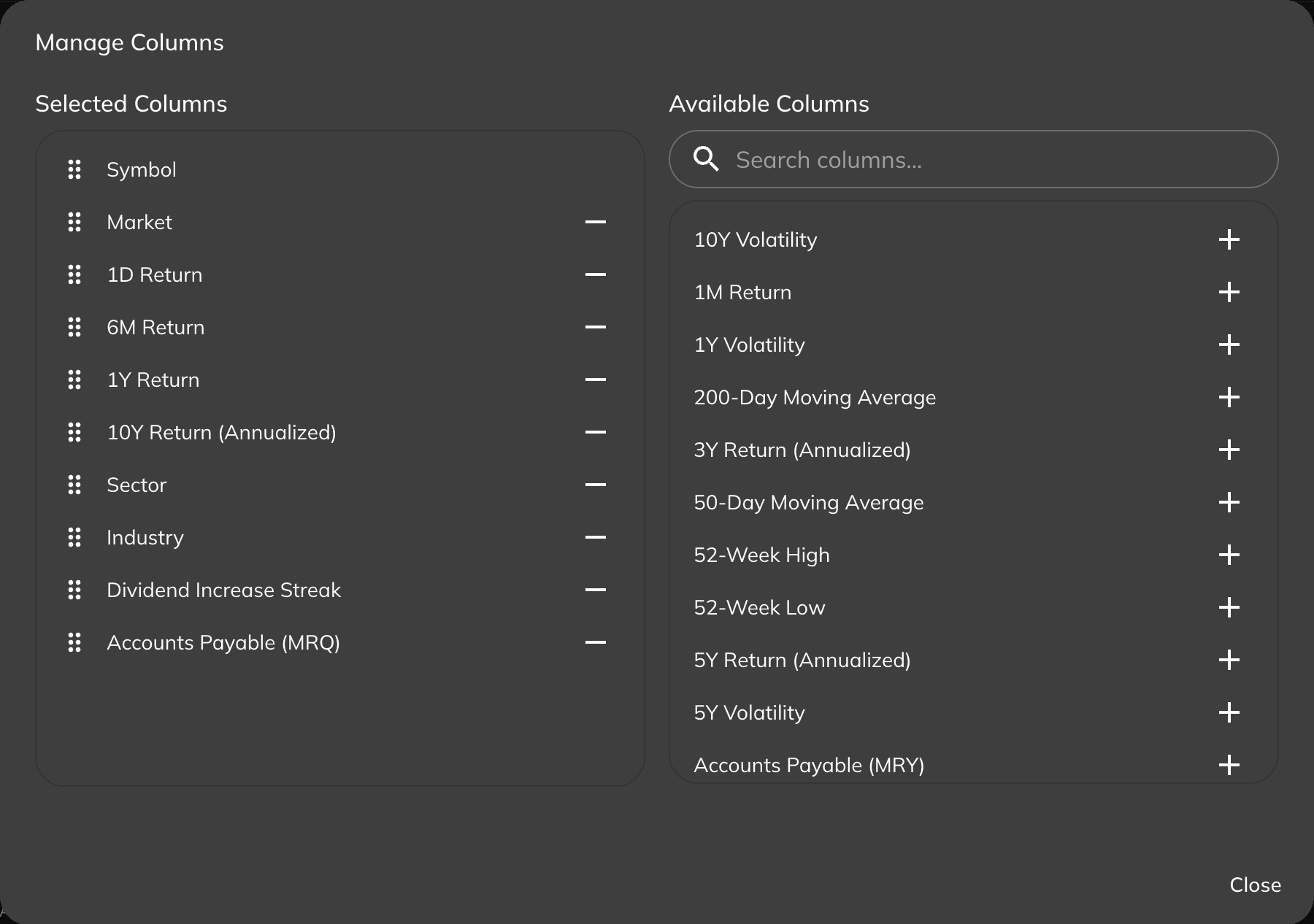
Click the Columns button in the top-right area of the table to open the column panel. You can:
- Enable or disable any column using the toggle
- Drag columns to reorder them in the table
- Add metrics from categories like Valuation, Balance Sheet, Income Statement, Technicals, and more
Your column configuration is saved automatically and persists across sessions.
Filtering
Filters are the core of screener workflow. Each filter narrows the symbol universe by one criterion. Filters stack — each one you add further reduces the result set.
Adding Filters
Click Edit Filters to open the filter catalog.

Filters are organized into categories:
General
Name, sector, industry, category, issuer, asset class.
Indicators
Return metrics, drawdown, risk-adjusted ratios.
Valuation
P/E ratio, P/B ratio, EV/EBITDA, and similar multiples.
Income Statement
Revenue, earnings, profit margins.
Balance Sheet
Assets, liabilities, book value.
Cash Flow
Operating, investing, and free cash flow metrics.
Highlights
Key summary statistics and notable metrics.
Splits & Dividends
Dividend history, payout ratio, and stock split data.
Technicals
Moving averages, momentum indicators.
Use the search field at the top to find a specific filter by name. Check the box next to each filter you want, then close the modal. The selected filters appear in the filter bar above the table.
Adjusting Filter Values
Once a filter is added, it appears in the filter bar. Click it to adjust the value.

Filters work differently depending on the type of data:
Numeric Range
Used for metrics like Return, Drawdown, P/E ratio. You set a minimum, a maximum, or both. Example: set Max Drawdown between -20% and 0% to find low-drawdown symbols.
Category Select
Used for fields like Sector, Industry, ETF Category. You pick one or more values from a list. You can also exclude values using the "not equals" operator.
Text Search
Used for name search. Type part of a company name or ticker to narrow results.
Date Range
Used for date-based fields such as inception date. Set a from-date, to-date, or both.
Results update immediately as you change filter values.
To remove a single filter, click the × on its chip in the filter bar. To clear all filters at once, click Reset Screener.
Begin with one or two wide filters to see how many symbols remain. Then add tighter conditions one at a time. If you set too many strict filters at once, you may end up with zero results and it is harder to identify which condition eliminated everything.
Saving a Screener
When you have a filter combination you want to reuse, save it as a named screener.
Click the Save Screener As... option in the screener menu (top-right area).
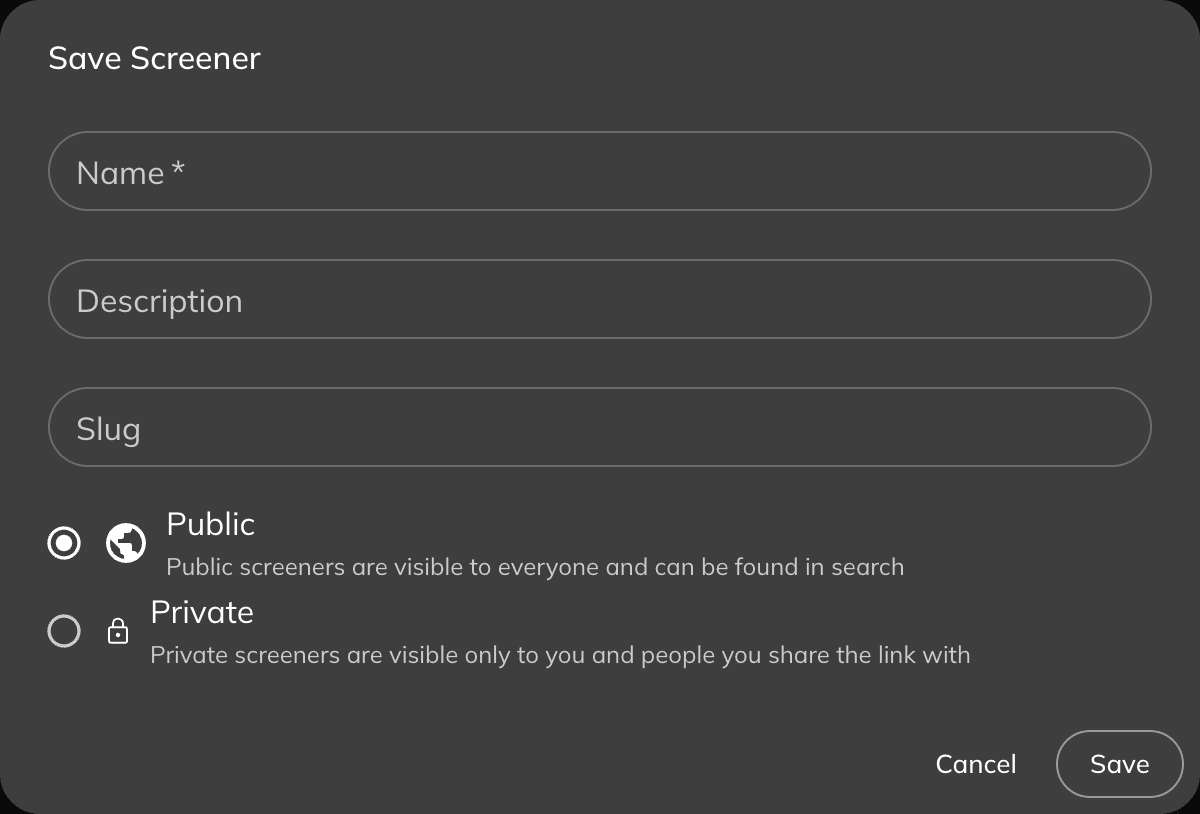
Fill in:
- Name — a short label for the screener
- Description — optional notes explaining the logic or purpose
- Visibility — set to Private if only you should see it, or Public if you want to share it
After saving, the screener gets a permanent URL. You can return to it any time, and it will load with the same filters applied.
To update a saved screener after adjusting filters, click Save (available only for screeners you own).
Managing Your Screeners
Your saved screeners are accessible from Screener → My Screeners in the navigation.
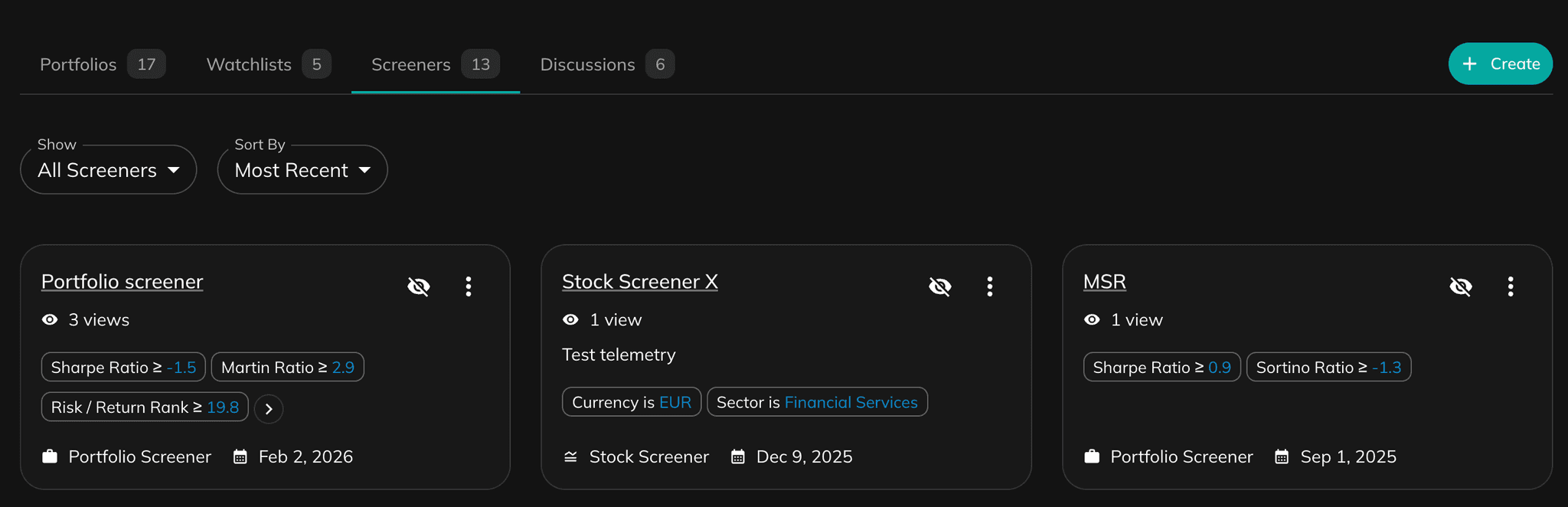
From the screener menu (the ⋯ icon or the actions menu in the screener view), you can:
Edit
Update the screener name, description, or visibility.
Save
Save filter changes to the current screener.
Clone
Create a personal copy of any screener — including public and system screeners. Cloning lets you modify someone else's filter logic without affecting the original.
Share
Open a share modal with a direct link to the screener. Anyone with the link can view and clone the screener.
Delete
Permanently remove the screener. A confirmation prompt appears before deletion.
Exporting Results
To download screener results as a spreadsheet, open the screener menu and choose Export as .CSV or Export as .XLSX.
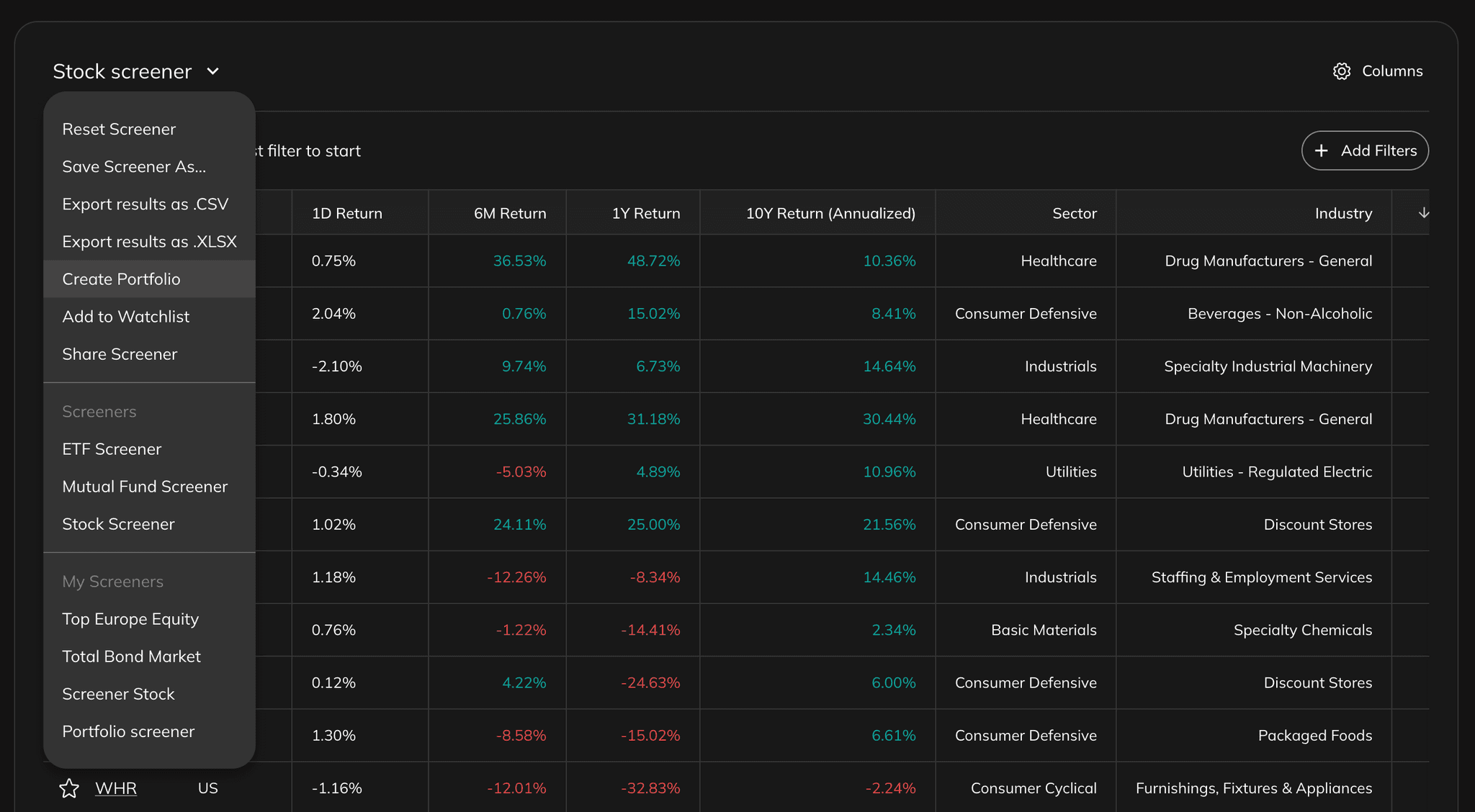
The export includes all rows that match the current filters (up to 10,000 symbols) and all visible columns.
Exporting results requires a Pro subscription. If you are on a free plan, clicking Export will show an upgrade prompt.
Using Screener Results
After narrowing down your list, there are two quick actions available directly from the screener:
Create Portfolio
Turn the filtered symbol list into a new portfolio. This is useful when you want to backtest a strategy defined by your screen.
Add to Watchlist
Add the filtered symbols to a watchlist so you can monitor them over time without committing to a portfolio.
Suggested Next Steps
Save your first screener
Start with 2-3 filters and save it. Return weekly to track which symbols pass or fail over time.
Use screening as a first pass only
A screen narrows the field — it does not replace deeper analysis. Validate finalists using the analysis tools.
Explore system screeners
Browse pre-built public screeners under Screener → Screeners. Clone any of them and customize filters to your own needs.