

Getting Started
/Create and Analyze Your First Portfolio
Create and Analyze Your First Portfolio
Build a starter portfolio, review its risk and performance, check diversification, and test possible improvements.
This guide walks through a quick PortfoliosLab workflow: start with a popular portfolio template, customize one holding, save the portfolio, and review the analysis. You can use the same process for a portfolio you already own or for a model allocation you want to evaluate.
The Workflow
1
Start with a Template
Choose a popular portfolio to populate the editor with holdings and weights.
2
Customize Holdings and Weights
Add, remove, or replace holdings, then adjust weights so the portfolio totals 100%.
3
Save the Portfolio
Save the customized version so you have a baseline for analysis.
4
Review the Analysis
Examine performance, risk, drawdowns, diversification, and benchmark results.
5
Test Improvements
Use diversification analysis and optimization to compare possible changes.
Start with a Popular Portfolio
Open Create Portfolio. Keep the default Static Portfolio type selected.
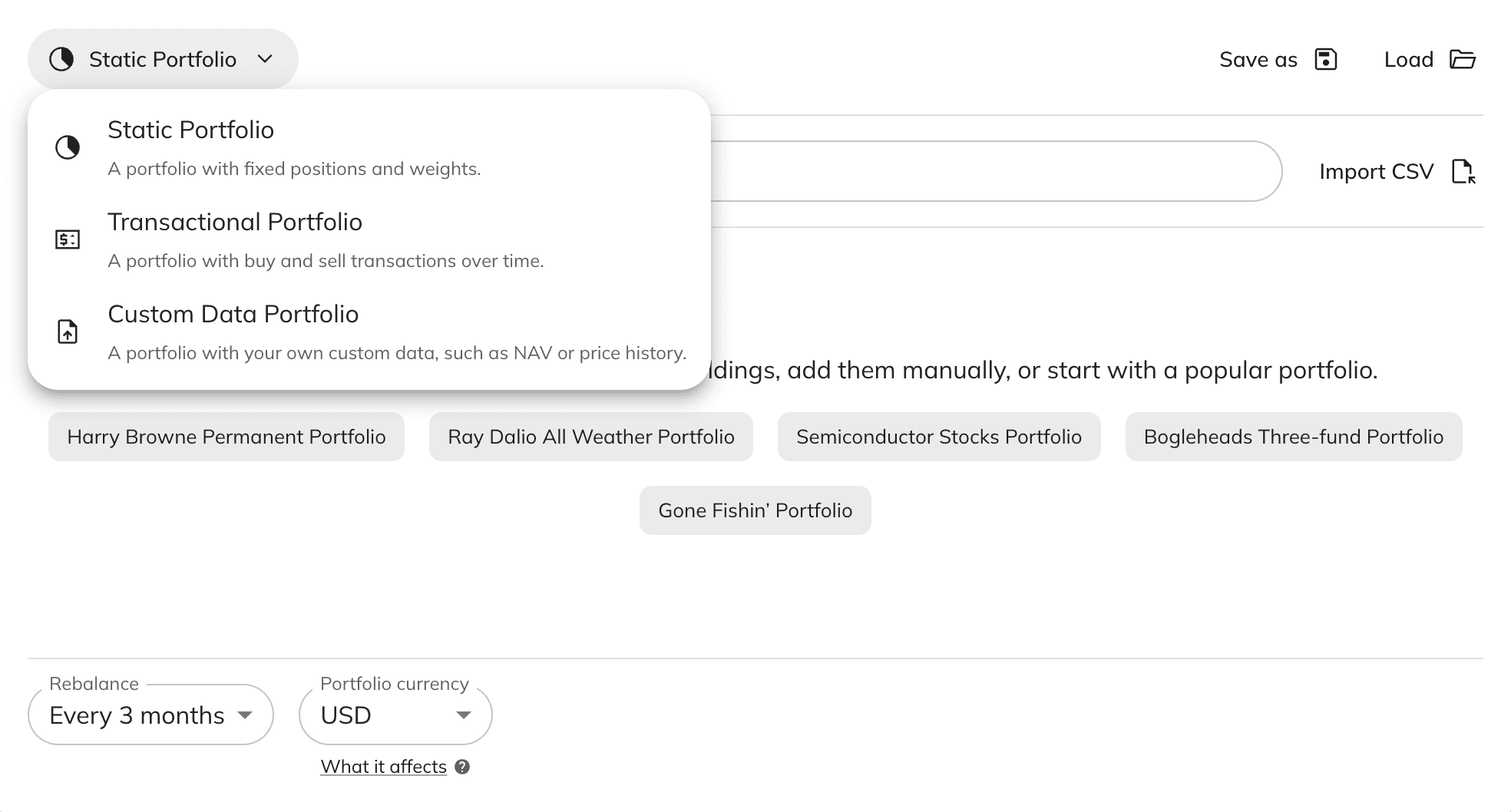
PortfoliosLab supports three portfolio types:
Static Portfolio
Use fixed holdings and target weights. This is the simplest option for building a model portfolio or analyzing a current allocation.
Transactional Portfolio
Use dated buy and sell transactions when you want portfolio history to follow actual trading activity. This gives more precise tracking but requires more input data.
Custom Data Portfolio
Import your own NAV or price history when position-level holdings are unavailable. Follow the NAV import guide for the required format.
For a first portfolio, use Static Portfolio.
When the editor opens, you can add holdings manually, import a CSV, or start from one of the popular portfolios shown in the empty state. The fastest path is to choose a template.
Select Harry Browne Permanent Portfolio. This fills the editor with a simple four-asset allocation that can be analyzed immediately.
Customize Holdings and Weights
After selecting the template, customize the holdings to make the portfolio your own.
In this example, start with the Harry Browne Permanent Portfolio, then remove TLT and add BIL and QQQ. This demonstrates a common edit flow: remove one holding, add two replacements, and let PortfoliosLab keep the portfolio balanced.
When TLT is removed, 25% of the portfolio becomes unallocated. If you add BIL and QQQ without entering weights manually, PortfoliosLab splits the unallocated weight evenly between them. Each new holding receives 12.5% (static portfolio weights must add up to 100% before the portfolio can be saved).
Choose a reporting currency and rebalancing frequency. Reporting currency controls how values are displayed. Rebalancing controls how often the historical analysis resets the portfolio back to its target weights.
Click Save to save the customized portfolio.
Save the first version before using optimization. This gives you a baseline for judging whether later changes are useful.
Review the Analysis
Click View to open the saved portfolio page. PortfoliosLab automatically calculates the main performance and risk results.
Start at Asset Allocation, select a relevant benchmark, and confirm the rebalancing setting before interpreting the charts.
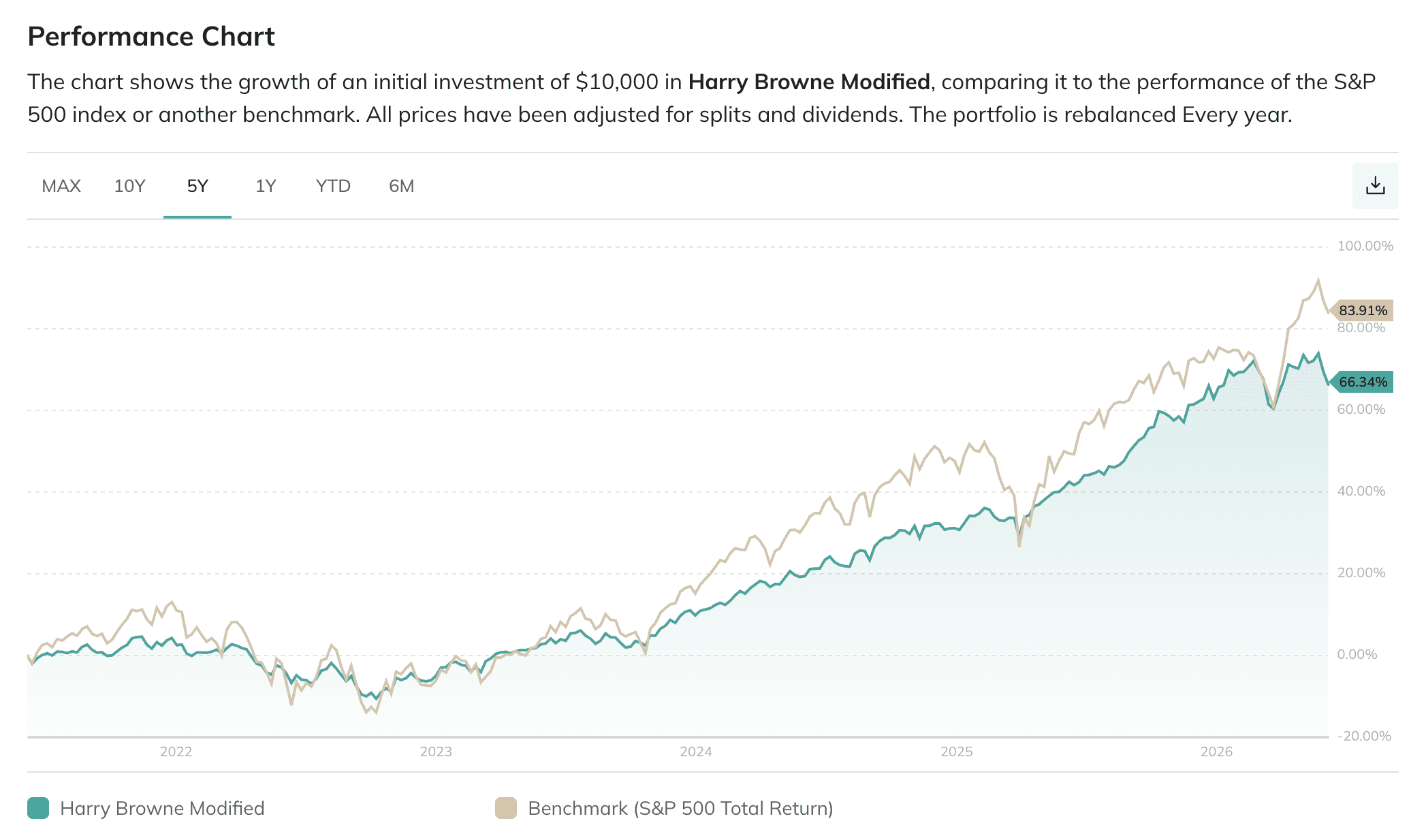
First, compare the portfolio's growth with the benchmark over the same period. Change the chart range to check whether the result is consistent or driven by a shorter interval.
Next, review Risk / Return Metrics. Ratios such as Sharpe, Sortino, Calmar, and Martin show whether the portfolio earned its return efficiently relative to volatility and drawdowns.
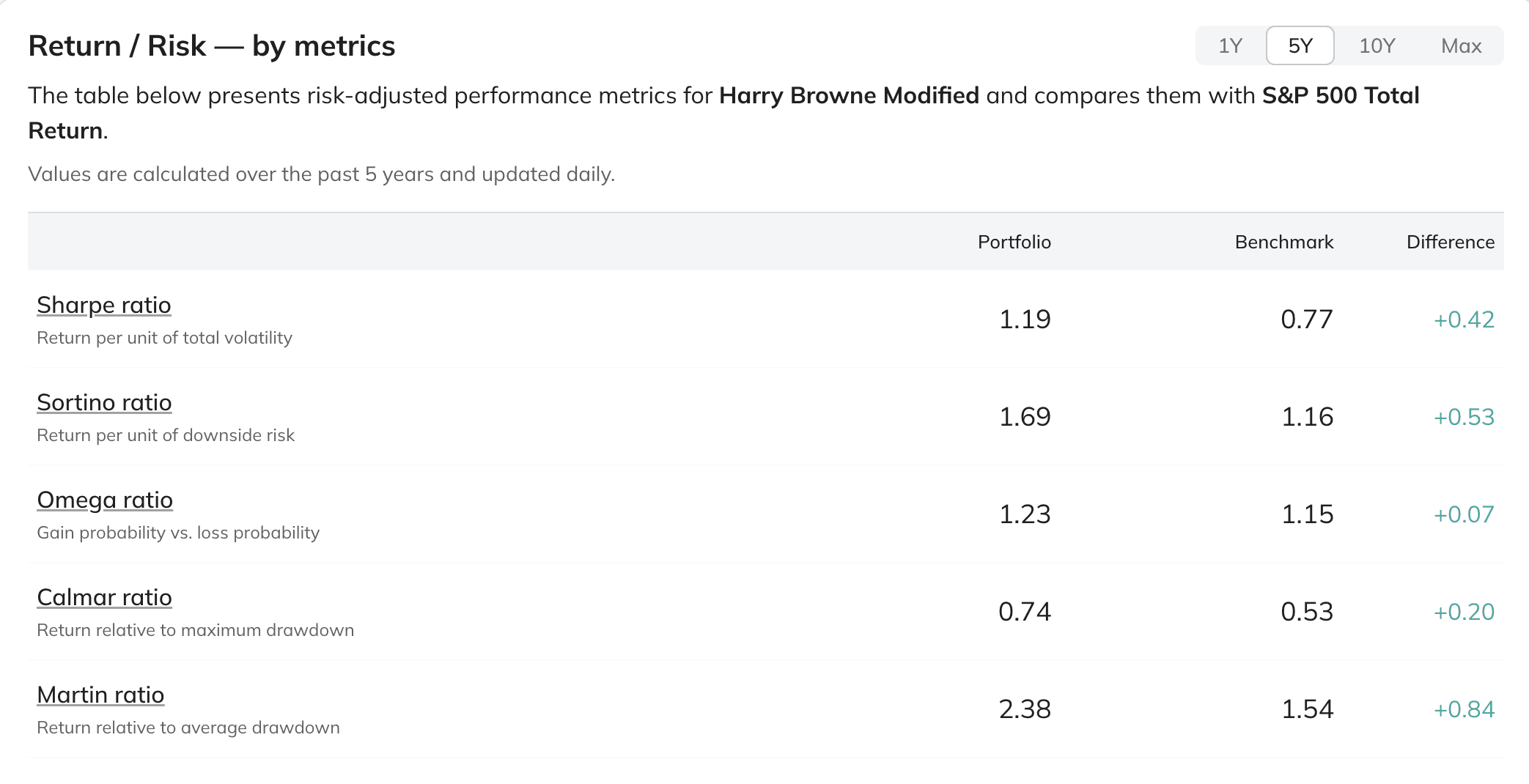
In this five-year example, the portfolio returned 66.34%, compared with 83.91% for the S&P 500 Total Return benchmark. The portfolio earned less in absolute terms, but its risk-adjusted metrics were stronger:
- Sharpe ratio: 1.19 vs. 0.77 — more return per unit of total volatility.
- Sortino ratio: 1.69 vs. 1.16 — more return per unit of downside risk.
- Calmar ratio: 0.74 vs. 0.53 and Martin ratio: 2.38 vs. 1.54 — better return relative to maximum and average drawdowns.
- Omega ratio: 1.23 vs. 1.15 — a smaller advantage when comparing gains with losses across the return distribution.
This is the central trade-off shown by the analysis: the portfolio did not maximize growth, but it delivered a smoother and more efficient risk-return profile over this period. Whether that is preferable depends on your objective and tolerance for volatility and drawdowns.
Review the results in this order:
- Performance: Compare growth and periodic returns with the benchmark.
- Return for Risk: Check whether returns compensated for volatility and downside risk.
- Drawdowns: See how far the portfolio historically fell and how long recovery took.
- Volatility: Understand how widely returns fluctuated over time.
- Diversification: Check whether the holdings reduce risk when combined.
Do not judge the portfolio from total return alone. A portfolio can outperform while taking deeper drawdowns or relying on one concentrated exposure.
The Portfolio Analysis guide explains each result section and the metrics behind it. You can also use Portfolio Analysis to compare a saved or temporary portfolio with different benchmarks and settings.
Check Diversification
Scroll to Diversification on the portfolio page. Review the diversification ratio and correlation matrix together. A portfolio with several holdings can still be poorly diversified when those holdings move in the same direction.
Open Diversification Analysis to examine the portfolio in more detail. Select Load, choose any saved static or transactional portfolio, then select Analyze Diversification.
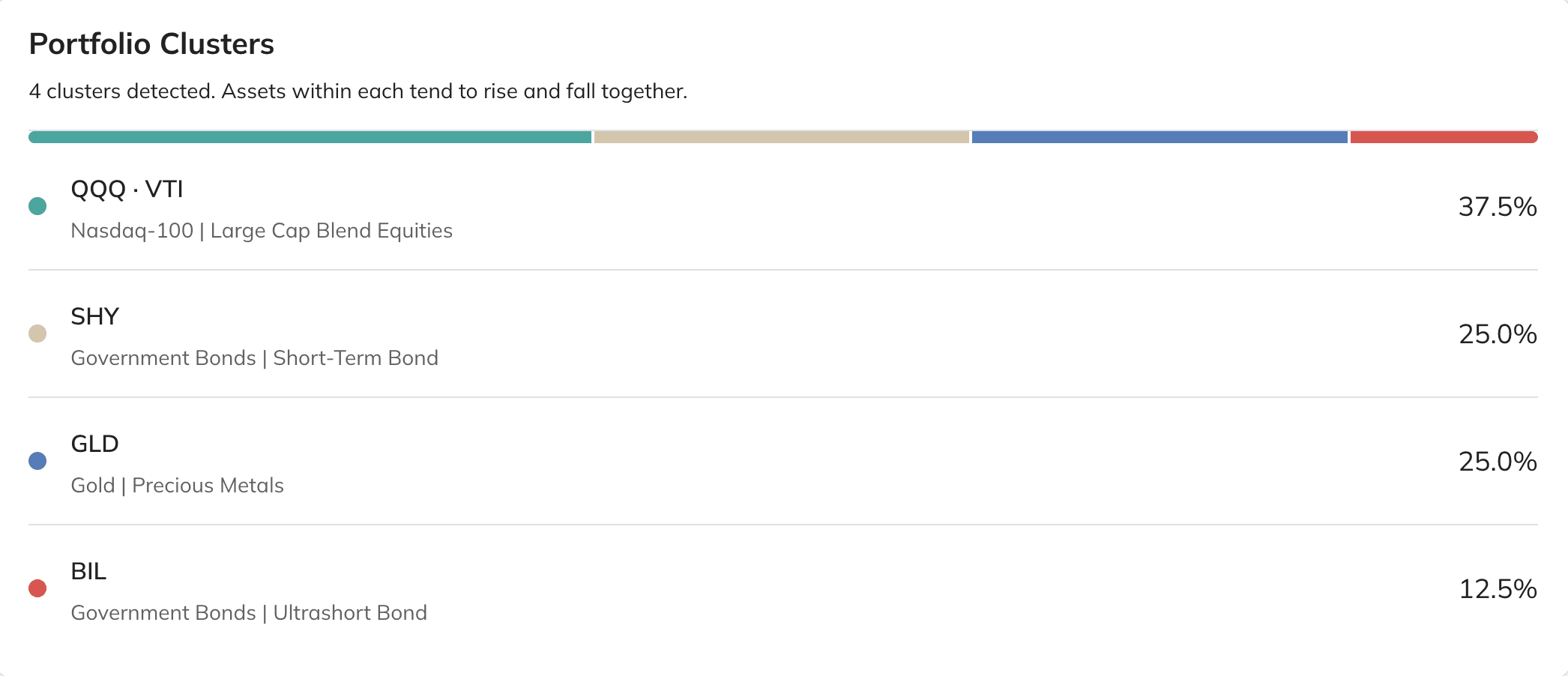
The Portfolio Clusters result groups assets that tend to rise and fall together. In this example, the tool detects four clusters:
- QQQ and VTI share one 37.5% cluster because both are broad US equity exposures with overlapping return drivers.
- SHY, GLD, and BIL form separate clusters, indicating that short-term Treasuries, gold, and Treasury bills behaved differently enough to provide distinct sources of diversification.
Clusters reveal behavioral overlap that position names and asset counts can hide. A cluster containing several holdings may signal concentrated exposure, while separate clusters indicate that the portfolio draws risk and return from different sources. Continue through the tool to review correlations and suggested diversifiers.
Treat suggested assets as research candidates. Before changing the portfolio, review why an asset behaves differently and whether it fits your investment objective.
The Understanding Diversification guide provides the conceptual background for correlations, concentration, and diversification ratio.
Test Improvements
After you understand the original portfolio, open Portfolio Optimization. Select Load in the optimizer, then choose the saved portfolio you want to test.
For a first run, use Mean-Variance Optimization with the default Maximize Sharpe Ratio objective. Set the reoptimization frequency to Quarterly, review the remaining settings, and select Optimize portfolio.
This runs a walk-forward test: at each quarterly rebalance, the optimizer calculates new weights using only the historical data available at that point, then applies those weights to the following period. This is more realistic than finding one allocation using the full history and applying it retrospectively.
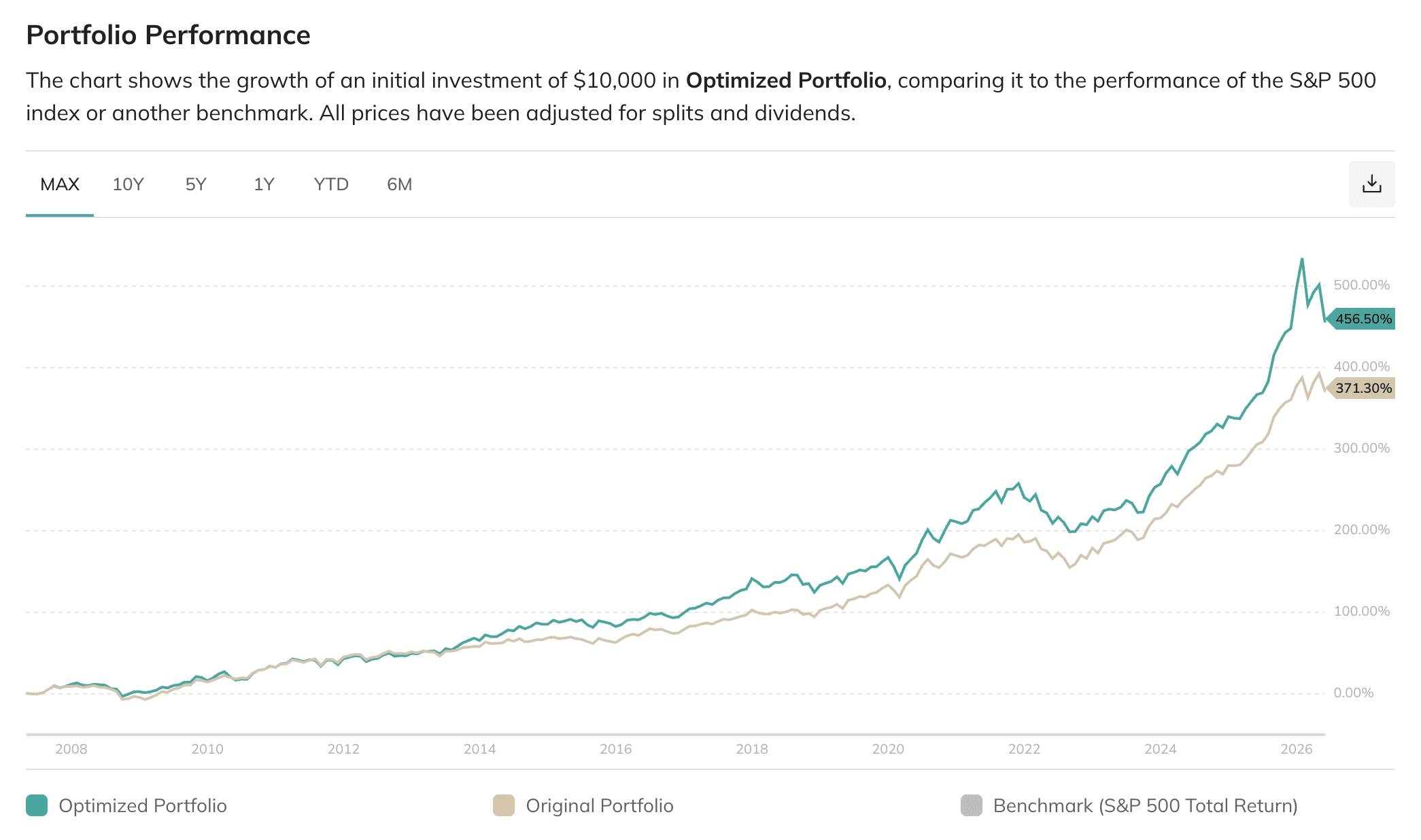
In this example, the quarterly walk-forward strategy reached 456.50% cumulative return over the displayed history, compared with 371.30% for the original portfolio. Because the objective was to maximize the Sharpe ratio, the important question is not only whether return increased, but whether the changing allocation delivered that return with a better balance of volatility and risk.
Compare the original and optimized allocations. Check whether the proposed portfolio:
- improves the metric that matches your objective
- avoids excessive concentration in one holding
- performs reasonably outside the optimization window
- remains practical to rebalance and maintain
Save a promising optimized allocation as a separate portfolio so the original remains available as a baseline.
The chart describes a historical simulation, not a forecast. Optimization can fit patterns that may not persist, so review drawdowns, concentration, and out-of-sample performance before accepting the new weights. Read What is Portfolio Optimization? before choosing a method, then use the method-specific guides when you need more control over objectives and constraints.
Repeat with One Change
Portfolio analysis works best as an iterative process. Change one assumption at a time, such as a holding, weight, benchmark, rebalancing frequency, or optimization objective, and then repeat the same analysis.
This makes it easier to see which change affected performance, risk, or diversification.
When you need a broader explanation of the trade-off you are evaluating, continue with Understanding Risk vs Return. For a guided qualitative review of a saved portfolio, use Analyze with AI.